

 -Save bandwidth
-Load pages more quickly
-Browse more securely
-Reduce data by “up to” 50% when browsing the web
Obviously, whenever you see words like “up to”, it means that the actual data usage saved will probably never get that high.
You also have to manually activate the setting in Chrome. To do that, go to Settings > Bandwidth Management and then toggle Reduce data usage to On.
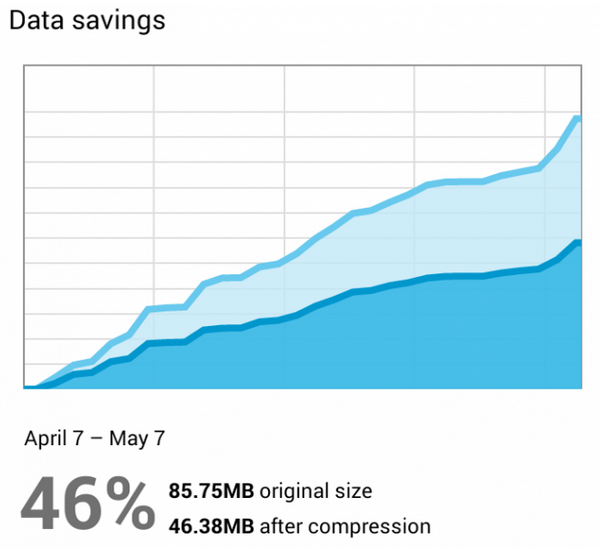
You can return to that same menu to check how much data you’ve saved each month.
-Save bandwidth
-Load pages more quickly
-Browse more securely
-Reduce data by “up to” 50% when browsing the web
Obviously, whenever you see words like “up to”, it means that the actual data usage saved will probably never get that high.
You also have to manually activate the setting in Chrome. To do that, go to Settings > Bandwidth Management and then toggle Reduce data usage to On.
You can return to that same menu to check how much data you’ve saved each month.
New Chrome for Android Update Reduces Data Usage By 50%
2 min read
Do you constantly worry about data? I know I do. I cringe when a friend takes my phone and spends 5 minutes Googling something stupid. Data ain’t cheap!
That’s why I like the new Chrome update, which reduces data usage by 50%.
How does that work? Chrome 32 for Android reduces data usage simply by compressing it. Compressed data takes less space than uncompressed data, which means you avoid draining your data plan.
There are actually quite a few different data compression apps on the market today. Some compression apps promise to reduce data usage by 90%, while others are more modest and promise a reduction of about 50%.
Whether you’re a chronic data user or just on a tight budget, the latest Chrome for Android update is designed to help you…
-Save bandwidth
-Load pages more quickly
-Browse more securely
-Reduce data by “up to” 50% when browsing the web
Obviously, whenever you see words like “up to”, it means that the actual data usage saved will probably never get that high.
You also have to manually activate the setting in Chrome. To do that, go to Settings > Bandwidth Management and then toggle Reduce data usage to On.
You can return to that same menu to check how much data you’ve saved each month.
-Save bandwidth
-Load pages more quickly
-Browse more securely
-Reduce data by “up to” 50% when browsing the web
Obviously, whenever you see words like “up to”, it means that the actual data usage saved will probably never get that high.
You also have to manually activate the setting in Chrome. To do that, go to Settings > Bandwidth Management and then toggle Reduce data usage to On.
You can return to that same menu to check how much data you’ve saved each month.
Newsletter
Get the latest tech news delivered to your inbox weekly.