Samsung
ADB Driver
Motorola
LG
SONY
ADB Driver
HTC
ACER
ADB Driver
ASUS
Dell
Huawei
ADB Driver
Amazon
ADB Driver
ZTE
Sharp
Alcatel
ADB Driver
Fujitsu
Lenovo
ADB Driver
ADB/USB Drivers - Basic Installation
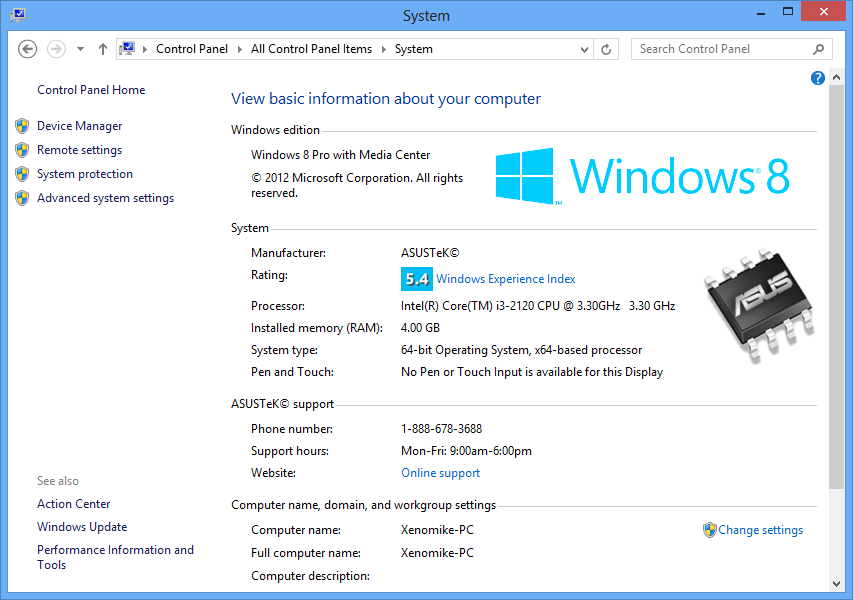
Most ADB drivers, like in the case with Samsung, would be installed alongside a PC application. This PC application is usually a media management or PIM management suite. In Samsung’s case, it would be their SmartSwitch program. Once you install SmartSwitch, you already have the drivers necessary for your device. All you would need to do is to connect the device to your PC with a USB cable. Other devices like ZTE smartphones will have their download for the drivers only. They can be installed just like any other program, and then you can connect the device to your PC. Then again, other smartphones, especially those that use the basic, unadulterated version of Android, will have their drivers preinstalled if you install the Android SDK. When installing a program, you need to make sure you are installing the right version to your PC. Pay attention to labels that indicate which OS they can be installed on like Windows 7, Windows XP, OSX, and so on. You will also notice that some downloads would have a separate file for 32 bit and 64 bit, otherwise known as X86 and X64 respectively. It is important that you install the correct version on your PC. While X64 systems can handle both X64 and X86 programs, the X86 systems can only use X86 programs. To find out which version you have, launch your PC’s Control Panel and choose “System” from the list: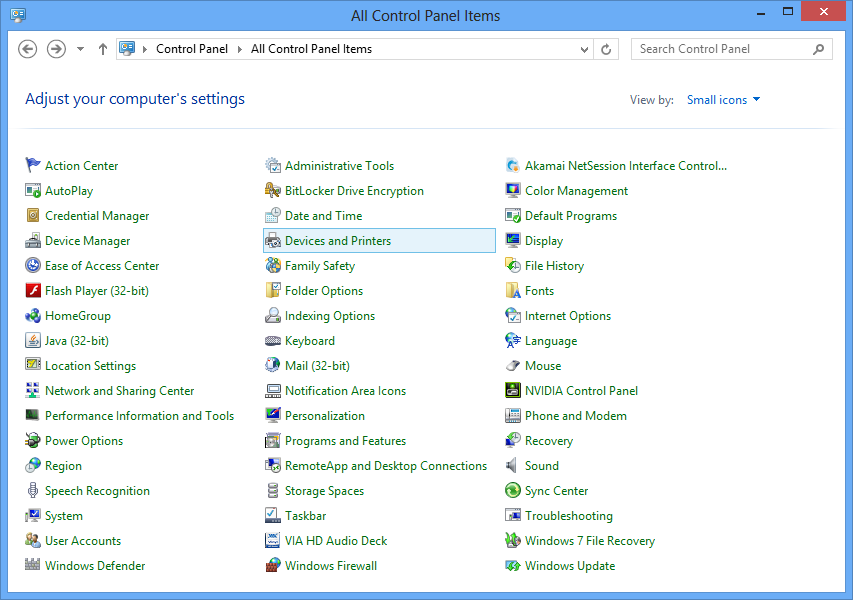 It would then display the system information of your computer. You can find which architecture your PC is using by looking at the System Type. In my case, I am using a 64-bit or X64 system.