

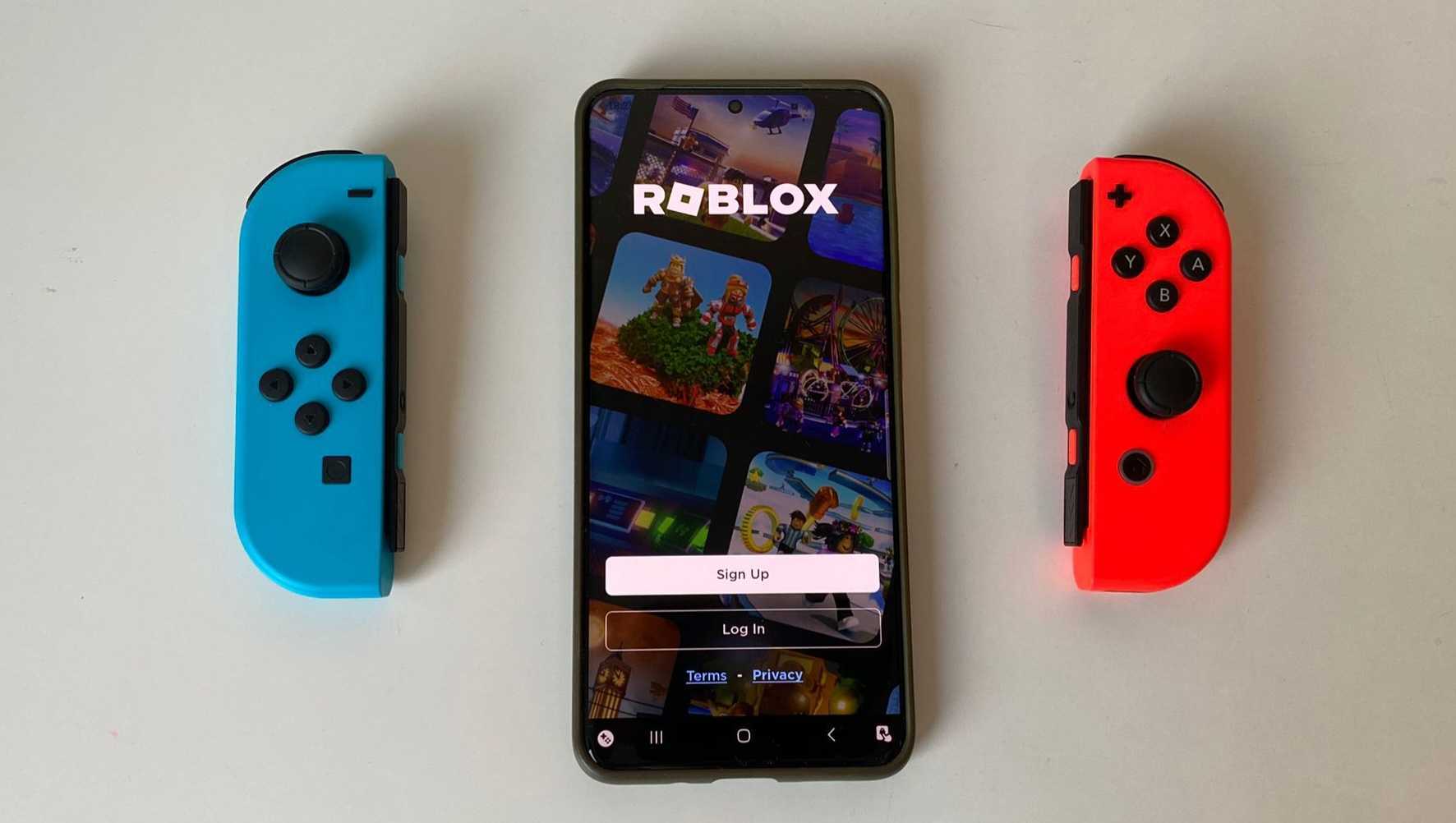
Is your device compatible?
First things first - we don’t want to get your hopes up too soon. Bear in mind that the Nintendo Switch Pro Controller unfortunately won’t work with all devices and all games. In order to fully enjoy this practical little thing, your device has to be running Android 10 or newer.Games that support controllers
The bad news is not all your most beloved games will be on this list. The good news is that the list itself is not scarce at all. Here are just some of the awesome games you’ll be able to use the Switch Pro Controller with:- DOOM
- Star Wars: KOTOR II
- Terraria
- Roblox
- Minecraft
- Alien: Isolation
- Brawlhalla
- and more.
How to connect your controller to your phone
The easiest way to pair your Switch Pro Controller with your Android is via Bluetooth. Step 1: Find your device’s Settings.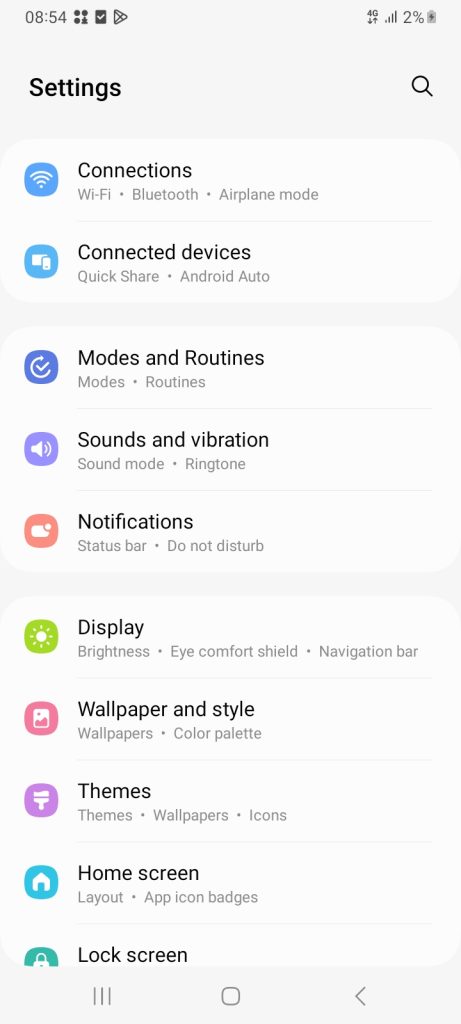 Step 2: Locate Bluetooth and switch it on.
Step 3: Find the Sync button on top of your gamepad and hold it. Once the green lights on the bottom of the controller start flashing, it’s ready to pair.
Step 4: In the Bluetooth settings on your phone, wait until the controller shows up. If it doesn’t, click on ‘Scan’ to prompt your device to locate it.
Step 2: Locate Bluetooth and switch it on.
Step 3: Find the Sync button on top of your gamepad and hold it. Once the green lights on the bottom of the controller start flashing, it’s ready to pair.
Step 4: In the Bluetooth settings on your phone, wait until the controller shows up. If it doesn’t, click on ‘Scan’ to prompt your device to locate it.
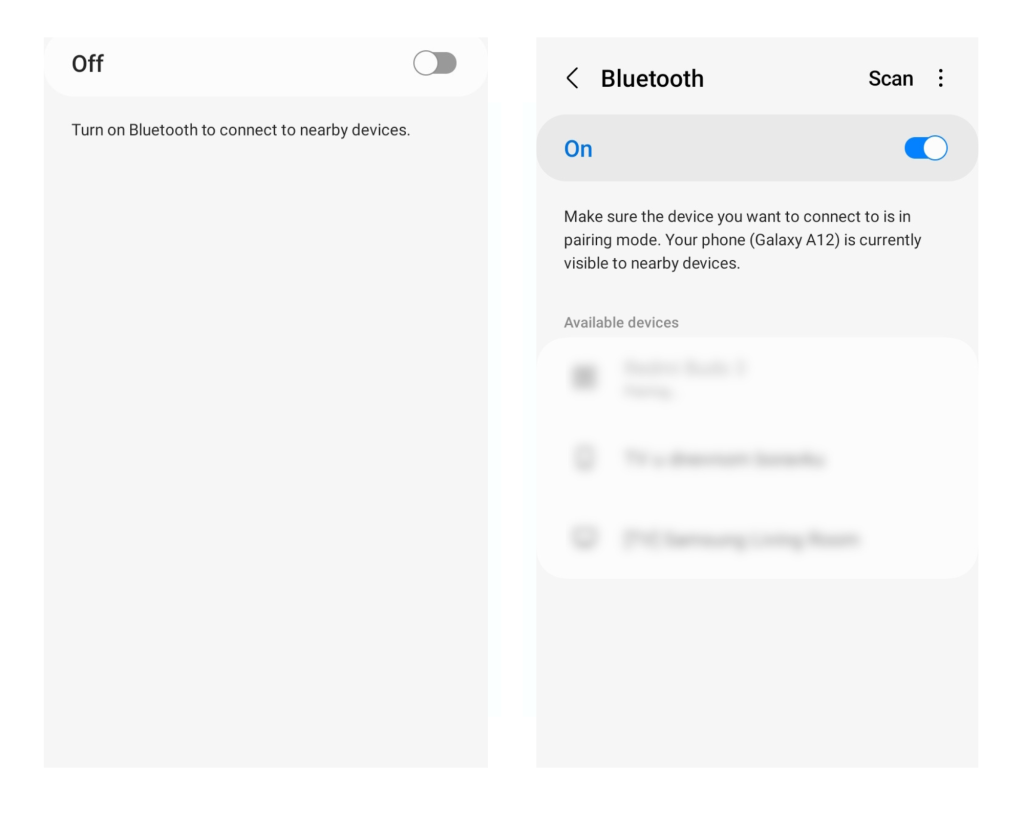 Step 5: When the gamepad shows up as an available device, tap it. This will begin the pairing process.
Step 6: Wait for the process to finish and check if your Pro Controller is listed as a connected device. If it is, et voilà - may the fun begin!
Note: It’s also possible to pair the controller using an adapter to enable a wired connection between your device’s and the controller’s USB-C port.
Step 5: When the gamepad shows up as an available device, tap it. This will begin the pairing process.
Step 6: Wait for the process to finish and check if your Pro Controller is listed as a connected device. If it is, et voilà - may the fun begin!
Note: It’s also possible to pair the controller using an adapter to enable a wired connection between your device’s and the controller’s USB-C port.
