- Test applications – trying out an application without having to install it from your Android device. Also, you can install apps outside of the Play Store through importing them and installing the .apk files in BlueStacks from your computer.
- Play your favorite games in a bigger screen – if you’re a gamer and you are used to playing them in a bigger screen, then you can play games that is only available to Android on your PC in a wider screen that even lets you to set it into full screen by clicking the Toggle Screen button located in the upper-right corner of the screen. You can press F11 to go back to the normal window size as well.
- Use your computer’s keyboard to type in to your Android applications – this way, you can type notes on your text applications and even in Microsoft Word for Android.
 After that you will be asked to create a BlueStacks account, which is for free and comes with interesting features, using your Google account.
If you are into games, having BlueStacks allows you to chat with other players online who play the same game you do. Aside from that, BLueStacks also has the ability to sync your account among your devices.
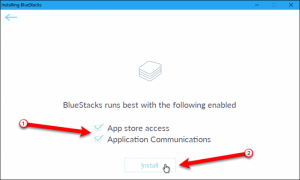
In our example in this article, we are using the BlueStacks 2 App Player that is good for running almost all applications, games included. But if you really want a BlueStacks version that is really good for gaming purposes, then you can make use of BlueStacks 3 Gaming Platform which allows you to play different accounts in games. To install BlueStacks, follow the steps below.
After that you will be asked to create a BlueStacks account, which is for free and comes with interesting features, using your Google account.
If you are into games, having BlueStacks allows you to chat with other players online who play the same game you do. Aside from that, BLueStacks also has the ability to sync your account among your devices.
In our example in this article, we are using the BlueStacks 2 App Player that is good for running almost all applications, games included. But if you really want a BlueStacks version that is really good for gaming purposes, then you can make use of BlueStacks 3 Gaming Platform which allows you to play different accounts in games. To install BlueStacks, follow the steps below.
- Click the Sign in with Google button and then go over the instructions to set up your BlueStacks account.
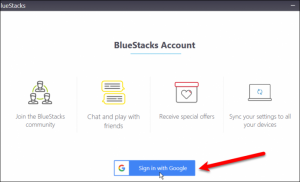
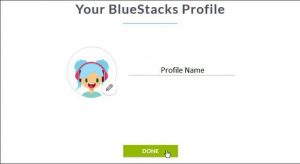
- After you complete setting up your BlueStacks account, BlueStacks will display your Profile name, be sure to remember it and then click Done.
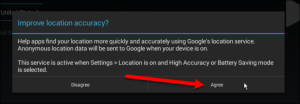
- After clicking Done, a dialog box about improving your location accuracy pops up, Click Agree if you want to improve it.
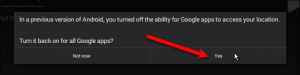
- Another dialog box appears that prompts you to turn location on for all your Google apps, click Yes if you want to.
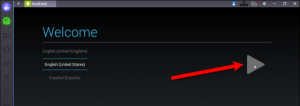
- Choose language on the Welcome screen.
- Sign in to your Google account. Take note that when you sign in to your Google account in BlueStacks, you will get two security alerts from Google notifying you that your just signed in from the two devices you are using for BlueStacks. There is nothing to worry about these alerts and just continue with the process.
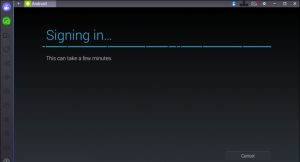
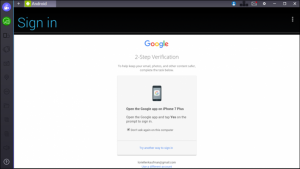
- You might encounter an error when signing in of you had set up two-factor authentication on your Google account which is recommended by the way. To fix that, click Next to start sign in on a browser.
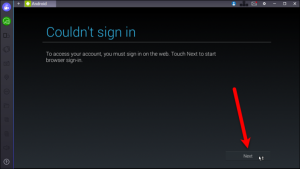
- After that, you will get a notification to approve the attempted sign n on your Android device. Tap yes to approve it.