

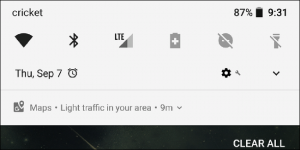
 In the example screenshot above, there’s a silent notification from Google Maps which is a traffic notification that informs you regarding a light traffic in your area. That is the perfect example of a silent notification. Although it’s there, you just didn’t know when it has gotten there since you didn’t receive any alerts. This is something that some users don’t like with Maps, because seriously, what’s the point of that information when you read it a little too late? Could have save you some hassle that traffic certainly brings. Anyways, Maps isn’t the only one that shows this silent notification. There are still other types of silent notifications in Android, some of which are still from the Google app. For instance, you were listening to some artist on your Google Play Music app. There are cases when a silent notification appears to let you know when the artist has a new album. This is actually good and many users liked it.
The same thing goes for your search queries. For example you’ve searched for an upcoming movie and whatnot, there’s a high chance that you’ll get a silent notification to inform you when that movie is released. And when you search for some information about some sports team you are a fan of, you can get a silent notification of game scores and all kinds of stuff related to it.
Although silent notifications only represent some passive information or non-important stuff that you could possibly want, it is still useful in some sense. It may be something you don’t want to know but it’s still something you need to know. And the best part is that with the new Android Oreo, you can turn any notification into a silent one as long as your device is running Android Oreo with full support.
This great feature is nothing if not for Android’s new Notification Channels in Android Oreo, allowing you to completely customize compatible apps’ notification setting. For instance, when you want to completely disable the visual notification every time you take a screenshot, all you have to do is to set the notification priority to low. When you do this, Android will still notify you that you’ve taken a screenshot but without the visual or audible cues regarding it. This is perfect for users who are fond of taking screenshots, the ones who hoped for a day when they no longer have to dismiss the useless notification from the notification bar every single time you take a screenshot of something. So yeah, thank Google for that.
As of now, there is no way to disable these silent notifications as they’re still an essential part of Android and since they are generated by different apps. The best thing that you can do for now is to long press the silent notification and then modify it on the app’s settings once you learn which one of the app triggered the notification.
In the example screenshot above, there’s a silent notification from Google Maps which is a traffic notification that informs you regarding a light traffic in your area. That is the perfect example of a silent notification. Although it’s there, you just didn’t know when it has gotten there since you didn’t receive any alerts. This is something that some users don’t like with Maps, because seriously, what’s the point of that information when you read it a little too late? Could have save you some hassle that traffic certainly brings. Anyways, Maps isn’t the only one that shows this silent notification. There are still other types of silent notifications in Android, some of which are still from the Google app. For instance, you were listening to some artist on your Google Play Music app. There are cases when a silent notification appears to let you know when the artist has a new album. This is actually good and many users liked it.
The same thing goes for your search queries. For example you’ve searched for an upcoming movie and whatnot, there’s a high chance that you’ll get a silent notification to inform you when that movie is released. And when you search for some information about some sports team you are a fan of, you can get a silent notification of game scores and all kinds of stuff related to it.
Although silent notifications only represent some passive information or non-important stuff that you could possibly want, it is still useful in some sense. It may be something you don’t want to know but it’s still something you need to know. And the best part is that with the new Android Oreo, you can turn any notification into a silent one as long as your device is running Android Oreo with full support.
This great feature is nothing if not for Android’s new Notification Channels in Android Oreo, allowing you to completely customize compatible apps’ notification setting. For instance, when you want to completely disable the visual notification every time you take a screenshot, all you have to do is to set the notification priority to low. When you do this, Android will still notify you that you’ve taken a screenshot but without the visual or audible cues regarding it. This is perfect for users who are fond of taking screenshots, the ones who hoped for a day when they no longer have to dismiss the useless notification from the notification bar every single time you take a screenshot of something. So yeah, thank Google for that.
As of now, there is no way to disable these silent notifications as they’re still an essential part of Android and since they are generated by different apps. The best thing that you can do for now is to long press the silent notification and then modify it on the app’s settings once you learn which one of the app triggered the notification.
“Silent” Notifications on Android
4 min read
Here’s the thing, you’re using your phone but don’t see any notification in the notification bar. But when you drag down the notification panel there actually is a notification. What’s weird is that there is no icon showing in the bar for this notification.
To put it simply, this strange thing is called a silent notification. A silent notification is when a notification shows up with no visible icon or visual alert that lets you know it’s there. So what’s even its purpose if it doesn’t alert you? Well it still has a purpose but it’s not that important. It’s like passive information. It’s something that you can check any time you want to since it’s not even time sensitive and does not require much of your attention.
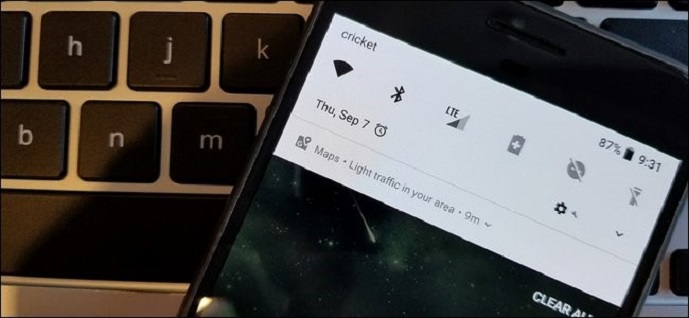
In the example screenshot above, there’s a silent notification from Google Maps which is a traffic notification that informs you regarding a light traffic in your area. That is the perfect example of a silent notification. Although it’s there, you just didn’t know when it has gotten there since you didn’t receive any alerts. This is something that some users don’t like with Maps, because seriously, what’s the point of that information when you read it a little too late? Could have save you some hassle that traffic certainly brings. Anyways, Maps isn’t the only one that shows this silent notification. There are still other types of silent notifications in Android, some of which are still from the Google app. For instance, you were listening to some artist on your Google Play Music app. There are cases when a silent notification appears to let you know when the artist has a new album. This is actually good and many users liked it.
The same thing goes for your search queries. For example you’ve searched for an upcoming movie and whatnot, there’s a high chance that you’ll get a silent notification to inform you when that movie is released. And when you search for some information about some sports team you are a fan of, you can get a silent notification of game scores and all kinds of stuff related to it.
Although silent notifications only represent some passive information or non-important stuff that you could possibly want, it is still useful in some sense. It may be something you don’t want to know but it’s still something you need to know. And the best part is that with the new Android Oreo, you can turn any notification into a silent one as long as your device is running Android Oreo with full support.
This great feature is nothing if not for Android’s new Notification Channels in Android Oreo, allowing you to completely customize compatible apps’ notification setting. For instance, when you want to completely disable the visual notification every time you take a screenshot, all you have to do is to set the notification priority to low. When you do this, Android will still notify you that you’ve taken a screenshot but without the visual or audible cues regarding it. This is perfect for users who are fond of taking screenshots, the ones who hoped for a day when they no longer have to dismiss the useless notification from the notification bar every single time you take a screenshot of something. So yeah, thank Google for that.
As of now, there is no way to disable these silent notifications as they’re still an essential part of Android and since they are generated by different apps. The best thing that you can do for now is to long press the silent notification and then modify it on the app’s settings once you learn which one of the app triggered the notification.
In the example screenshot above, there’s a silent notification from Google Maps which is a traffic notification that informs you regarding a light traffic in your area. That is the perfect example of a silent notification. Although it’s there, you just didn’t know when it has gotten there since you didn’t receive any alerts. This is something that some users don’t like with Maps, because seriously, what’s the point of that information when you read it a little too late? Could have save you some hassle that traffic certainly brings. Anyways, Maps isn’t the only one that shows this silent notification. There are still other types of silent notifications in Android, some of which are still from the Google app. For instance, you were listening to some artist on your Google Play Music app. There are cases when a silent notification appears to let you know when the artist has a new album. This is actually good and many users liked it.
The same thing goes for your search queries. For example you’ve searched for an upcoming movie and whatnot, there’s a high chance that you’ll get a silent notification to inform you when that movie is released. And when you search for some information about some sports team you are a fan of, you can get a silent notification of game scores and all kinds of stuff related to it.
Although silent notifications only represent some passive information or non-important stuff that you could possibly want, it is still useful in some sense. It may be something you don’t want to know but it’s still something you need to know. And the best part is that with the new Android Oreo, you can turn any notification into a silent one as long as your device is running Android Oreo with full support.
This great feature is nothing if not for Android’s new Notification Channels in Android Oreo, allowing you to completely customize compatible apps’ notification setting. For instance, when you want to completely disable the visual notification every time you take a screenshot, all you have to do is to set the notification priority to low. When you do this, Android will still notify you that you’ve taken a screenshot but without the visual or audible cues regarding it. This is perfect for users who are fond of taking screenshots, the ones who hoped for a day when they no longer have to dismiss the useless notification from the notification bar every single time you take a screenshot of something. So yeah, thank Google for that.
As of now, there is no way to disable these silent notifications as they’re still an essential part of Android and since they are generated by different apps. The best thing that you can do for now is to long press the silent notification and then modify it on the app’s settings once you learn which one of the app triggered the notification.
Newsletter
Get the latest tech news delivered to your inbox weekly.