

 Step 2) Download the status bar transparency module from here
Step 3) Open Xposed, tap the Translucent Style module, and choose from one of the available styles.
There are 11 different styles available in total, each of which is emulated after a particular type of Android handset.
Available styles include:
-KitKat gradient
-Customizable gradient
-Full transparency
-Android “L” style, which is a solid and slightly darker color than Android KitKat
-Sense 6 style
-HTC Sense 5 style
-“CarBlend” style, which is designed to look best with darker backgrounds
-Halo and Bracket gradients
-“Cutter” style
-Sony Xperia style
You can easily switch between each notification bar style to find the one you like most. You can view developer Woalk’s XDA Developers Forum page here.
Step 2) Download the status bar transparency module from here
Step 3) Open Xposed, tap the Translucent Style module, and choose from one of the available styles.
There are 11 different styles available in total, each of which is emulated after a particular type of Android handset.
Available styles include:
-KitKat gradient
-Customizable gradient
-Full transparency
-Android “L” style, which is a solid and slightly darker color than Android KitKat
-Sense 6 style
-HTC Sense 5 style
-“CarBlend” style, which is designed to look best with darker backgrounds
-Halo and Bracket gradients
-“Cutter” style
-Sony Xperia style
You can easily switch between each notification bar style to find the one you like most. You can view developer Woalk’s XDA Developers Forum page here.
How to Change the Transparency of your Status Bar
2 min read
Usually, Android updates improve all aspects of your handset.
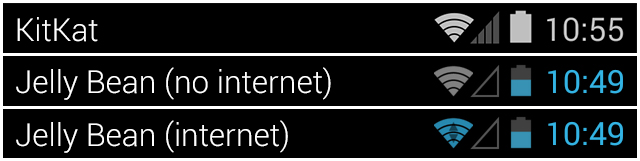
The latest Android KitKat update, however, made at least one thing noticeably worse: the status bar is now mostly transparent.
I’m sure this looks good on some devices with certain backgrounds. Unfortunately, anyone who uses a light desktop background now has an invisible status bar. White text over a light background makes it impossible to see the time of day, battery percentage, and other critical information.
That’s annoying – especially if you like using light-colored desktops. Fortunately, a member of the XDA Developers Forum named Woalk recently created a module for Xposed that lets you restore your status bar to its original opacity.
Here’s how you can fix your status bar using this new module:
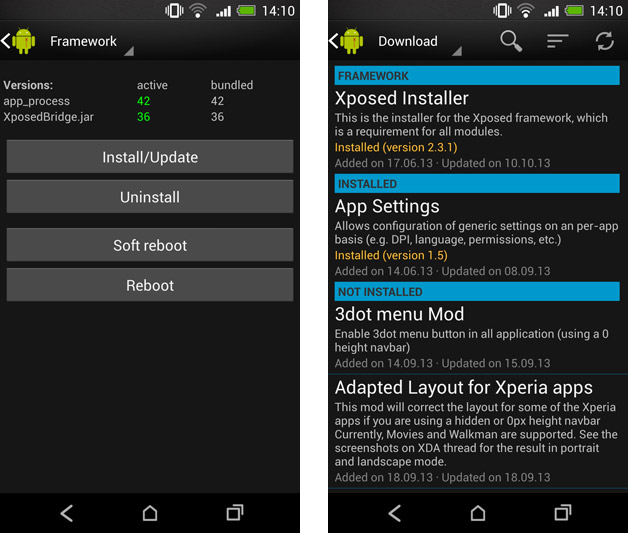
Step 1) Download and install Xposed Framework on your rooted Android device
Step 2) Download the status bar transparency module from here
Step 3) Open Xposed, tap the Translucent Style module, and choose from one of the available styles.
There are 11 different styles available in total, each of which is emulated after a particular type of Android handset.
Available styles include:
-KitKat gradient
-Customizable gradient
-Full transparency
-Android “L” style, which is a solid and slightly darker color than Android KitKat
-Sense 6 style
-HTC Sense 5 style
-“CarBlend” style, which is designed to look best with darker backgrounds
-Halo and Bracket gradients
-“Cutter” style
-Sony Xperia style
You can easily switch between each notification bar style to find the one you like most. You can view developer Woalk’s XDA Developers Forum page here.
Step 2) Download the status bar transparency module from here
Step 3) Open Xposed, tap the Translucent Style module, and choose from one of the available styles.
There are 11 different styles available in total, each of which is emulated after a particular type of Android handset.
Available styles include:
-KitKat gradient
-Customizable gradient
-Full transparency
-Android “L” style, which is a solid and slightly darker color than Android KitKat
-Sense 6 style
-HTC Sense 5 style
-“CarBlend” style, which is designed to look best with darker backgrounds
-Halo and Bracket gradients
-“Cutter” style
-Sony Xperia style
You can easily switch between each notification bar style to find the one you like most. You can view developer Woalk’s XDA Developers Forum page here.
Newsletter
Get the latest tech news delivered to your inbox weekly.