


How to Use Your Android Phone or Tablet as a Remote Control Device for your PC
2 min read
Most Android users have a simple Android to PC relationship. They connect their Android device to their PC to exchange song files and possibly pictures. That’s it.
But some Android users demand more from their Android/PC relationship. Today, we’re going to show you how to actually use your Android phone or tablet to remotely control your PC and execute important commands.
This method currently only works with Windows XP, Vista, 7 8, and 8.1 computers, although the developer promises to add Mac OS and Linux functionality in the near future.
Step 1) Download and install PC Quick Commands on your Android device
Step 2) Download and install the ClientApp.zip file onto your PC from this forum thread (download the file from the link near the bottom of the first post)
Step 3) Once you’ve completed installation on both devices, you’ll notice the application sleeping in your status bar in Windows.
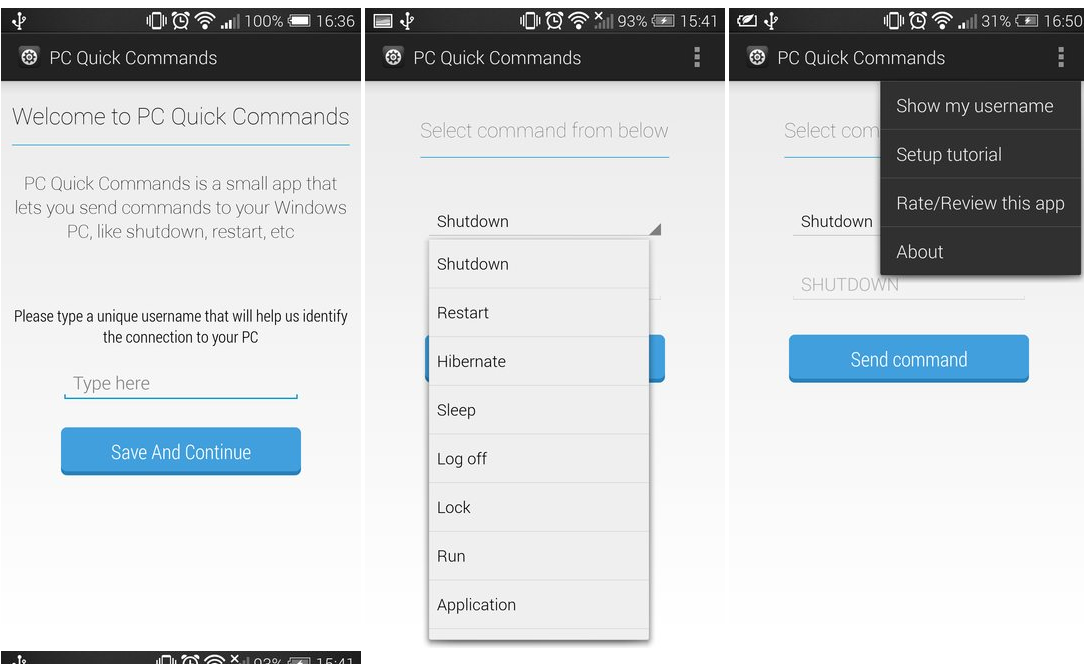
Step 4) Once you see the application in your status bar, you can fire up your Android app and execute important commands. You can’t fully control your PC from your Android – so don’t expect to play video games or type on your keyboard. However, you can execute all of the following commands:
-Shutdown
-Restart
-Hibernate
-Sleep
-Log off
-Lock
-Run
-Application
Newsletter
Get the latest tech news delivered to your inbox weekly.